
Allocate permissions to restrict the viewing or editing of data to those who it is meant for, or for access to specific actions.
Choose a Role to define permissions for and click the Options button in the righthand column in the row. From the drop-down, click Permissions.
In the Edit Permissions pop-up, you can define access and control based on the following Permissions Controls (more information about each of these Controls can be found in Permissions Controls):
- The action or access levels described in the table’s header row
- The Timewize areas listed in the left-hand column of the table to which the user can apply the action or have access
- The level of ownership for the data in each Timewize area per the tick-box labels
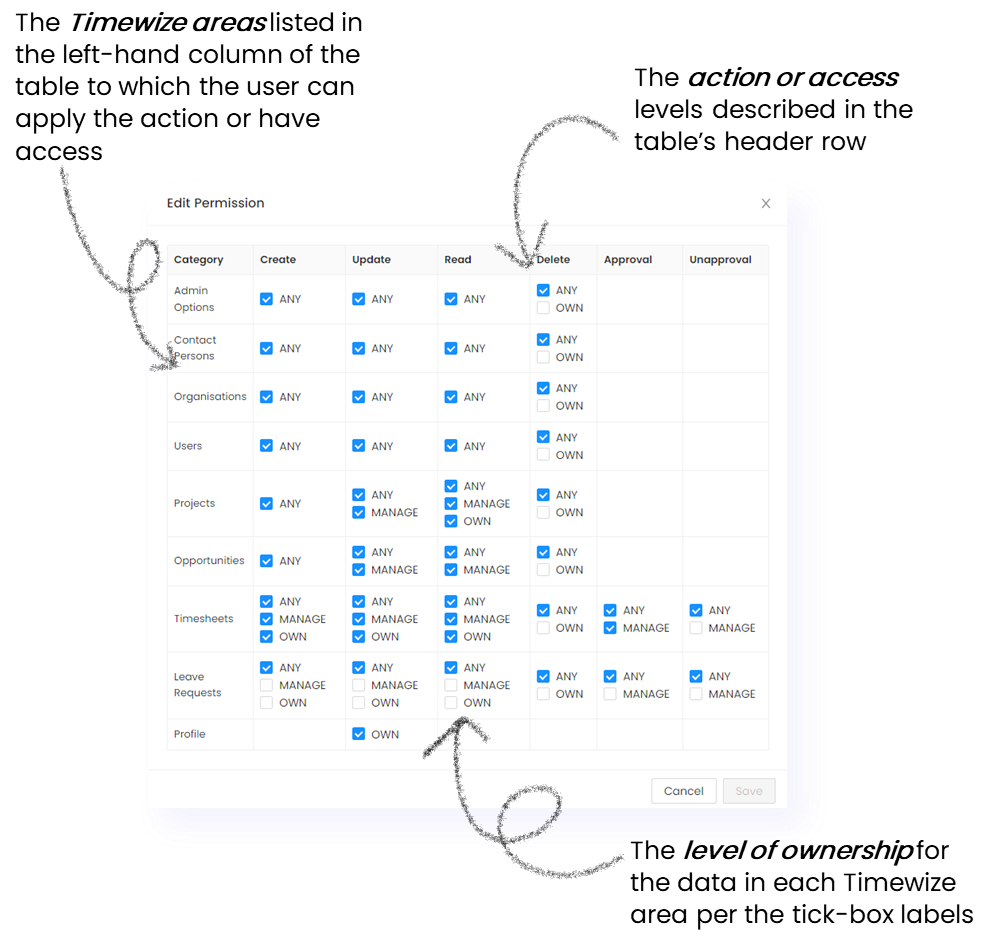
Use the tick boxes to select the permissions that you want to allow that user type to have, or de-select the permissions to remove that permission ability from the selected user type.
Click Save.